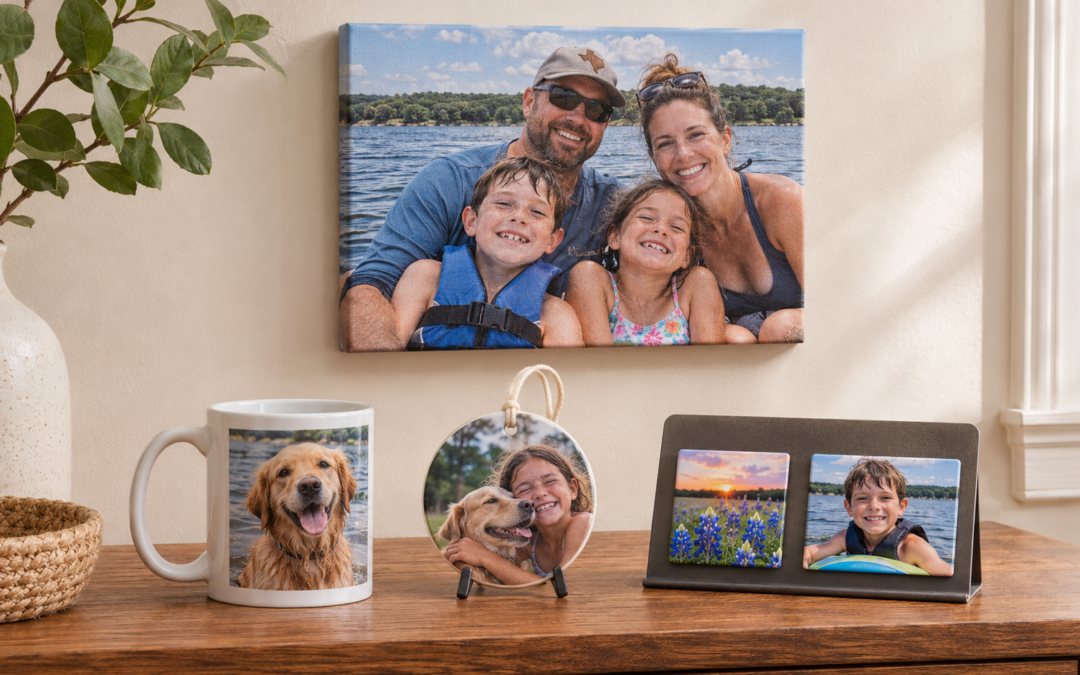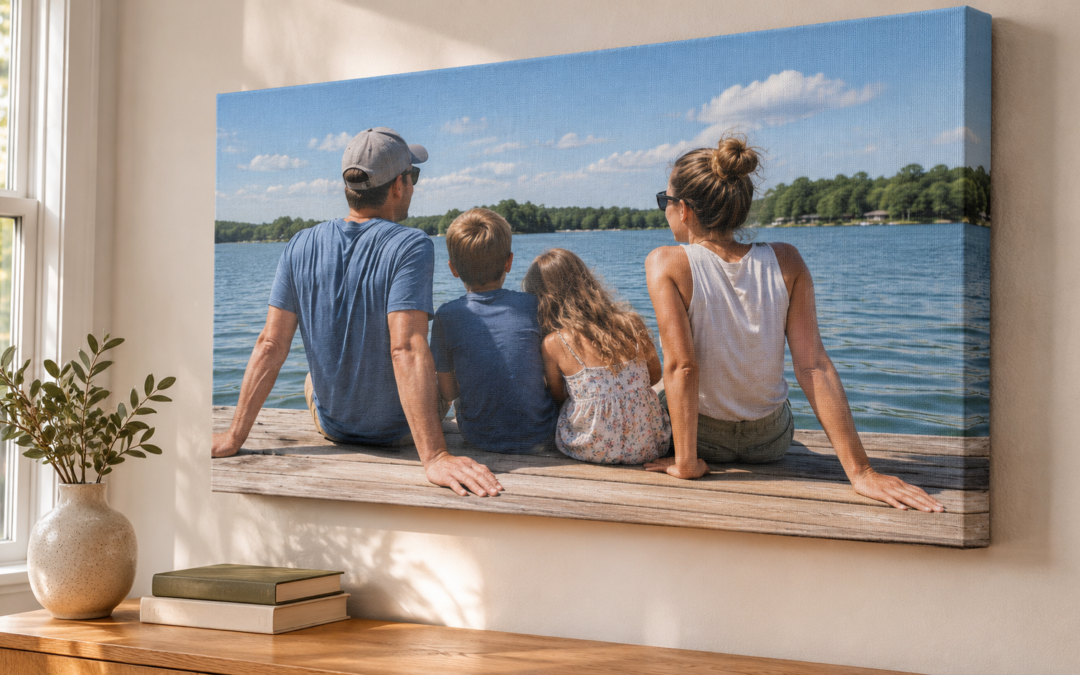
Personalized photo gifts start with a picture that means something to the person opening it. Think of the dog asleep in Grandpa’s chair, the first Christmas in a new house, or the family photo where everyone finally looked at the camera. If you already know which picture would make someone smile, here are five ways to turn it into a Christmas gift.
1. Frame the family photo everyone asked you to send
Remember the group picture from Thanksgiving that three people asked you to text them? Print a copy for each household. A 5 × 7 fits on a desk or nightstand, while an 8 × 10 gives faces a little more room. If people are standing near the edges, check the crop before you pick a frame size.
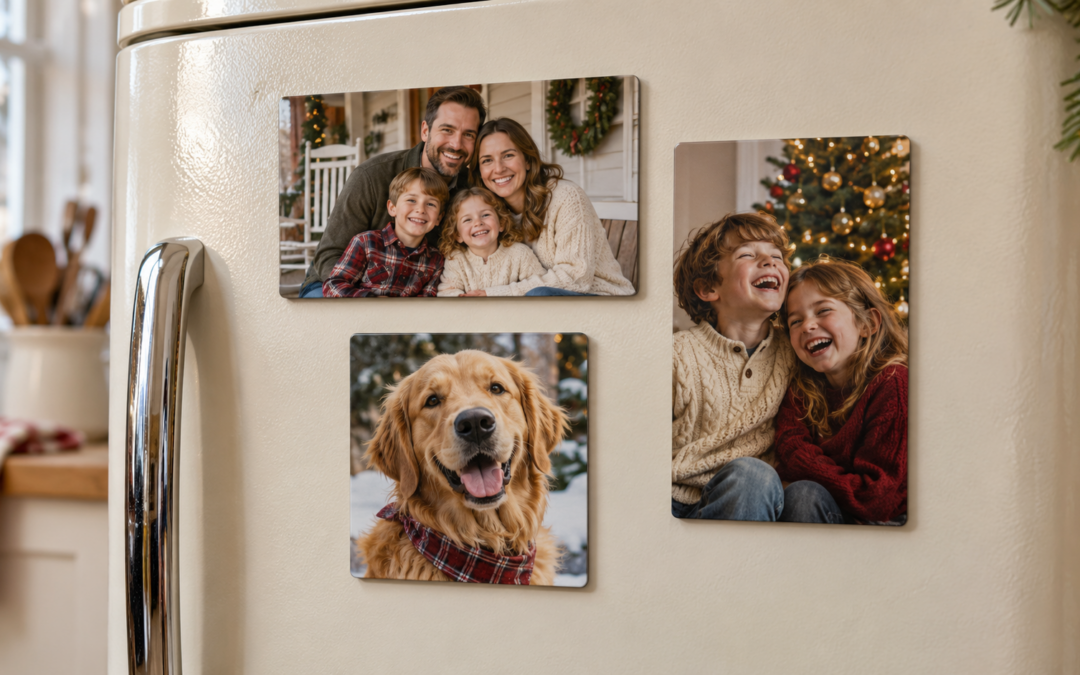
2. Give the pet photo its own spot on the fridge
A photo magnet works well for the picture that captures a pet’s personality. Use the shot of the dog with one ear up or the cat sitting in the empty Christmas tree box. Choose a photo with one clear subject so the detail still comes through at a small size.
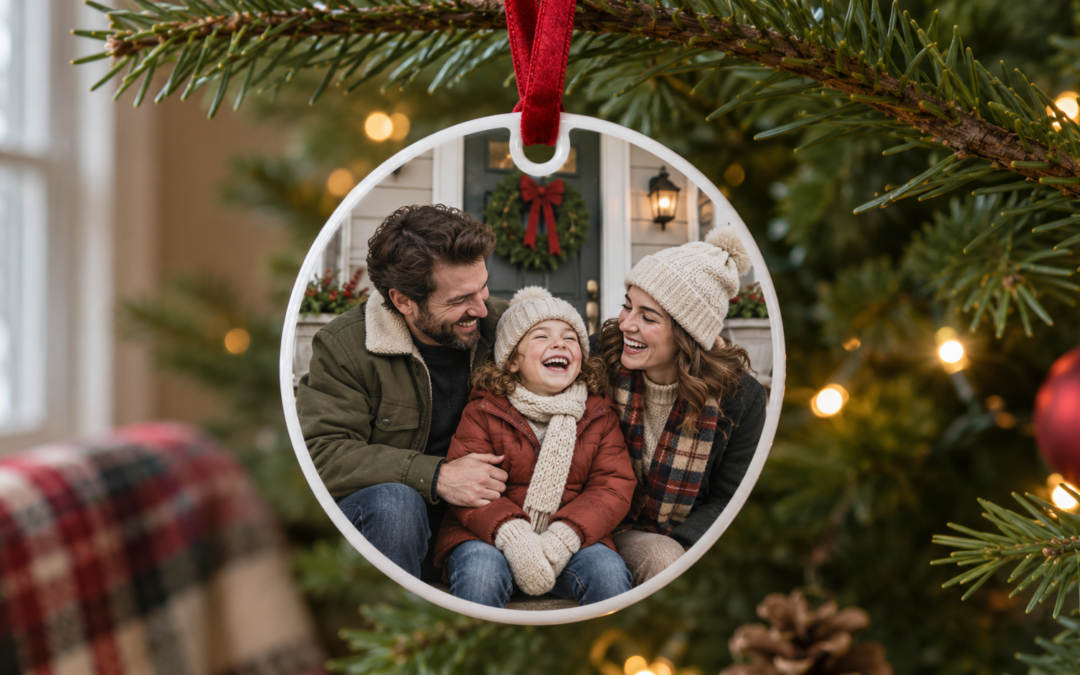
3. Make an ornament for a first Christmas
A first home, a new baby, or a newly adopted pet all give you a reason to add a photo ornament to the tree. Use one image and keep any lettering short. A name and the year are usually enough, especially if the ornament is small.
4. Put a favorite memory on a calendar
A photo calendar gives you room for the whole camera roll. Pick 12 photos from a road trip, pull together a year of grandkid pictures, or ask each sibling for a few favorites. Match the photos to the months where you can. A July lake picture is especially fun to see when July rolls around again.
5. Print an old family photo and write down its story
Ask a relative who’s in the photo, where it was taken, and what they remember about that day. Put those details on a separate card and tuck it behind the frame. If you’re starting with a small or faded original, bring it in and ask what size would work before planning an enlargement.
How to choose photos for personalized photo gifts
Start with the original file from your camera roll or ask the person who took the picture to send it. Look closely at faces, especially in group photos. A picture can look sharp on your phone and show softness when printed larger. Adobe recommends about 300 pixels per inch for prints viewed up close, so a 5 × 7 at that resolution uses roughly 1,500 × 2,100 pixels after cropping. Adobe’s guide to print resolution
If you’re sending the photo from an iPhone, check the options in the Photos app’s Share menu. Apple explains how to keep the current file format or share a compatible copy. Apple’s guide to sharing photos from an iPhone
Get help with personalized photo gifts in Stephenville or Granbury
Making a photo gift for a birthday, anniversary, or another occasion? Compare personalized photo gifts in our year-round guide and see what to send for a quote in Granbury or Stephenville.
Send your photo to 254 Sign & Print in Stephenville or 817 Sign & Print in Granbury. Tell us what you’d like to make, how many you need, and when you need them. We can help you check the crop and print size, confirm available options, and give you a quote before you order.